
CaptionsRush 101
Real-Time Captions Without the Headaches
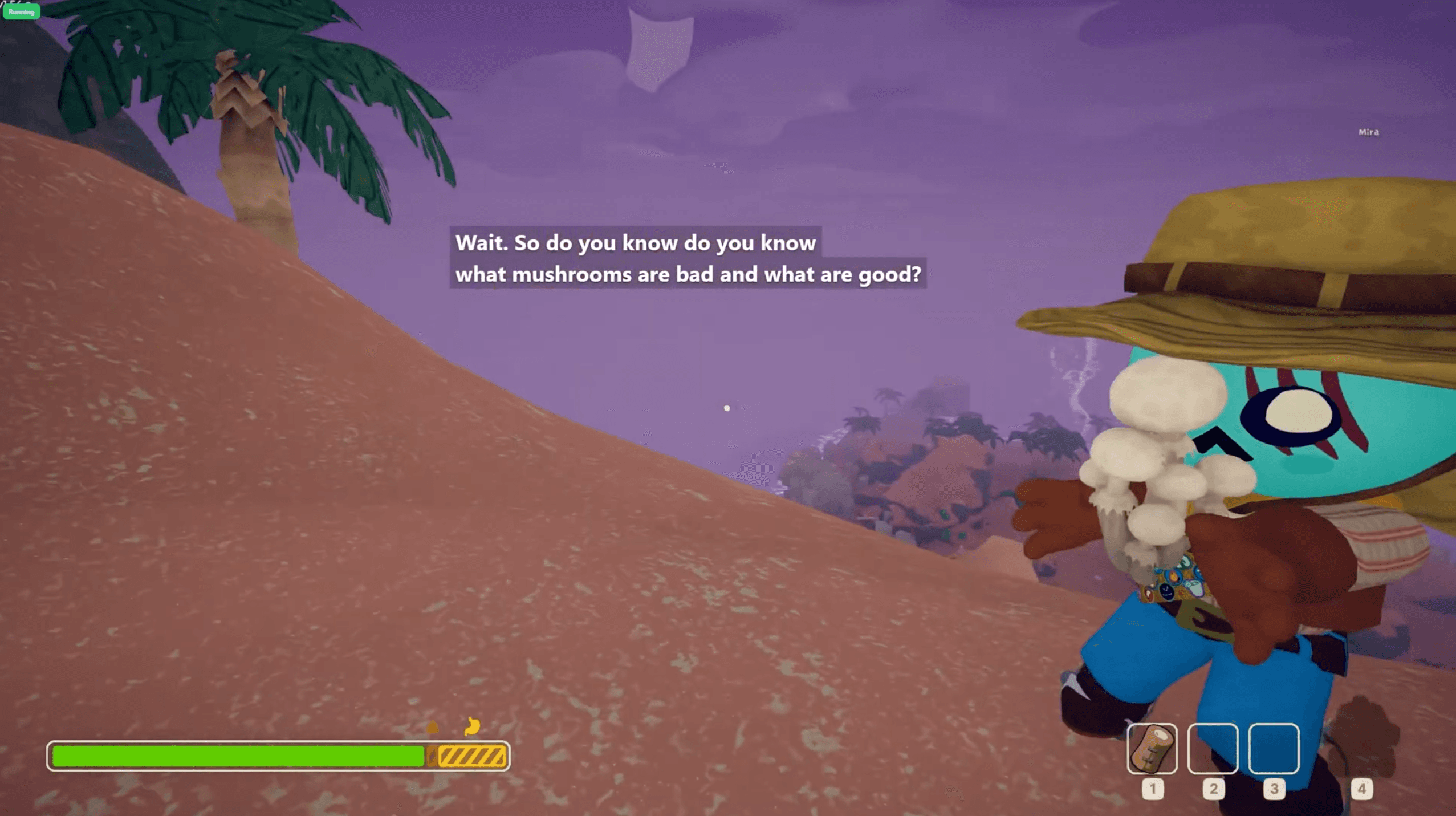
CaptionsRush is a desktop overlay that puts real-time captions over your Discord voice calls, your games, and anything else your computer is playing. It was built first and foremost for the deaf and hard-of-hearing gaming community - but plenty of hearing players use it for noisy environments, language learning, or just because subtitles are nice.
This page is a 101 - what you actually need to know to get good captions on day one, plus the knobs to turn when you're ready to tinker. Casual readers can stop at Section 6 and be in great shape; deeper sections are clearly marked (Advanced) so you can skip them.
---
1. What CaptionsRush Actually Does
You install the desktop app. The overlay sits on top of your game (or any window) and writes captions in near real-time. Under the hood, audio is captured from one of three sources, fed through a speech-to-text engine — either running locally on your PC or in the cloud — and the results stream back to the overlay character-by-character.
That's the whole product in one paragraph. The interesting decisions are which audio source, which engine, and how you tune it.
---
2. The Three Audio Sources
CaptionsRush captures audio from three different places, and you pick which one depending on what you want captioned.
Discord audio. When you set up the Discord bot, it joins your voice channel and taps each user's audio stream directly from Discord's voice codec. The signal is crystal-clear because it never touches your speakers or your sound card on the way in. This is the gold standard for captioning Discord voice chat.
System audio (Windows loopback). A small helper process taps whatever Windows is currently playing out — YouTube, Twitch, Spotify, in-game dialogue, voice chat in apps that aren't Discord, anything. The audio is captured frame by frame. This is what you'll use for most non-Discord use cases.
Microphone. The same helper, just listening to your default Windows input device. Use this if you want captions on what you are saying — for streaming, for accessibility tools, or for capturing someone in the room who isn't using a headset.
The most common silent trap: when you pick "system audio — specific program" and choose Chrome, but the audio is actually playing in Firefox or another tab. Result: total silence. If captures are silent, double-check the source app first.
---
3. The Golden Rule of Audio Quality
If you read nothing else in this post, read this.
Set your Windows output volume to 100%. Then drop the volume at your headset (the physical knob, the headset wheel, or an app-level slider in Discord/Spotify) until it's comfortable in your ears.
Why? The Windows loopback tap samples the actual speaker output level — there is no auto-gain in the capture path. If your system volume is at 25%, the engine sees a signal a quarter as loud as it could be. Quiet signal means the engine has less to work with, and worse, it can fall below the "this is silence" threshold inside the engine (Whisper's "Noise Floor" slider has a default of 200 on a 50–1000 scale — quiet captures get rejected as silence before they're ever transcribed).
The loopback tap sits before your headphone amp, so anything you do at the OS or app layer attenuates the signal that reaches the engine. But the physical volume knob on your headset is after the digital tap, so it controls only your ears — not the captions.
System at 100%, headset at "comfortable" = the single biggest accuracy upgrade you can make with one click.
---
4. Picking a Model: Local vs Cloud
CaptionsRush ships with multiple speech-to-text engines, split into two groups.
Local engines (Sherpa-ONNX, Echo, Whisper) run entirely on your machine. They're free, they keep your audio private, and their performance depends on your hardware. If your CPU/GPU is up to it, this is the everyday default.
Cloud engines (Valkyrie, Deepgram Flux) run on remote servers. They're sub-200 ms in latency, demand zero local compute, but consume your purchased minute balance. Save them for high-stakes situations — tournament play, streaming, weak laptops, or any time the local engines aren't keeping up.
---
5. The Model Matrix
A quick comparison across the engines you'll actually use. Star scale: ★ to ★★★★★.
Model | Accuracy | Speed | Language Coverage | Hardware Tier Required |
|---|---|---|---|---|
Sherpa-ONNX Zipformer | ★★★ | ★★★★ | ★★★ (English + several others) | ★ (any CPU, lightweight) |
Sherpa-ONNX NeMo | ★★★★ | ★★★★★ | ★ (English only) | ★★ (modest CPU; NeMo 80 ms is the fastest local option) |
Echo | ★★★ to ★★★★ (size-dependent) | ★★★★★ | ★ (English only) | ★★ (Medium wants an 8+ core CPU) |
Whisper | ★★★★ to ★★★★★ (size-dependent) | ★★ on CPU / ★★★★ on GPU | ★★★★★ (99 languages) | ★★★★ (CUDA GPU strongly recommended from Small upward) |
Valkyrie — cloud | ★★★★★ | ★★★★★ | ★★★★★ (60+ languages, auto-detect) | ★ (cloud — network only) |
Deepgram Flux — cloud | ★★★★ (slight edge over Valkyrie on American English) | ★★★★★ | ★★ (English, with American English as its strongest variant) | ★ (cloud — network only) |
A few notes on reading this table:
- Hardware tier: ★ means "anything runs it"; ★★★★ means "you really want a recent NVIDIA GPU for usable real-time."
- Speed combines latency-to-first-caption with steady-state throughput.
- Cloud providers consume your CaptionsRush minute balance. Local providers don't.
---
6. Per-Model Explainers
Sherpa-ONNX — Zipformer family. The broadest, lightest local engine. Multiple language variants packaged in this family, all small (roughly 60–200 MB). Runs on any CPU with very low memory. Best pick when you don't have an NVIDIA GPU and you just want something reliable for general use.
Sherpa-ONNX — NeMo family. The latency-optimised local engine. The NeMo 80 ms variant has the lowest first-token latency of any local engine in CaptionsRush. English-centric. Best pick when you want snappy local captions and you don't need 99 languages.
Echo. A streaming-first, English-only engine. Multiple model variants ship with the app — pick from the model dropdown and download what you need. The big trade-off is exposed in a single setting called Echo mode (Action vs Standard), which controls how much context the engine keeps before committing to a caption. Best pick when you want words appearing one-by-one with a real "live captioning" feel. Deep dive in Section 7.
Whisper (Local). Six model sizes from Tiny up to Large-v3, plus Large-v3 Turbo, across 99 languages. Sizes range from 78 MB (Tiny) to 3.1 GB (Large-v3). Highest accuracy of the local engines, especially for non-English audio. Needs a CUDA GPU once you go past Small for real-time use. Deep dive in Section 7.
Valkyrie — cloud. The default cloud engine. Single universal multilingual model covering 60+ languages with auto-detect. Server-side speaker diarization. Real-time translation. The best overall combination of accuracy and speed in CaptionsRush — but it consumes your minute balance.
Deepgram Flux — cloud. An English-focused, ultra-low-latency cloud engine. Has punctuation and interim results just like the other cloud engines, but it's tuned tightly for English. It's slightly more accurate than Valkyrie on American English — a small gap, not a landslide. A solid second cloud option if you're streaming or playing American-English content and want the last bit of accuracy.
---
7. Engine Deep Dives — Workers and Knobs (Advanced)
This section maps directly to what you'll see in Settings → (engine) in the desktop app, so you can follow along in the UI. Three subsections — skip whichever engines you don't use.
7a. Sherpa-ONNX (Settings → ONNX Settings)
Model (dropdown). Grouped list. The dropdown has section headers — ── Zipformer ── and ── NeMo ── — so you can scan by family. Zipformer entries are lightweight and broad on languages; NeMo entries are tighter on languages but include the fastest local option (NeMo 80 ms).
Manage All Models (button). Opens a per-model list with disk-usage info, plus Download / Delete buttons. This is where you clean up older variants you no longer use.
Device (dropdown). CPU or GPU (DirectML). DirectML is Sherpa's secret weapon: it works with AMD and Intel GPUs (Whisper is NVIDIA-only). Selecting GPU reveals a VRAM USAGE meter below so you can see how much headroom you have alongside the game you're playing.
Hotword biasing strength (slider, 0–20, default 0). Raw integer slider. 0 disables biasing; higher values push Sherpa harder toward the hotwords you've configured in the Vocabulary tab. Sherpa has finer-grained control than Echo here (Echo only offers three presets).
7b. Echo (Settings → Echo Settings)
Model (dropdown). Flat list of available Echo models. No size groupings; you pick the model by name and the app handles the rest.
Manage All Models (button). Same pattern as Sherpa: per-model Download / Delete plus disk-usage info.
Echo mode (dropdown). The headline knob. Two presets:
- Action (fast captions) — lowest caption lag, tuned for fast-paced multiplayer or audio with rapid back-and-forth chat. Slight accuracy cost on slow, deliberate speech.
- Standard (default) — universal default, the sweet spot of accuracy and latency.
Under the hood this swaps how much audio context Echo keeps before committing, but you don't have to think about that — just pick the preset that matches your scenario.
Hotword biasing (dropdown). Three presets, more guarded than Sherpa's raw slider:
- Off — no biasing.
- Standard (recommended) — nudges Echo toward your hotwords on uncertain decisions; safe on broad lists.
- Aggressive — only on narrow, well-curated word lists. Can hurt accuracy with broad packs.
Both engines link out to the Vocabulary tab, which is where you actually define the hotwords and topic packs that biasing operates on.
7c. Whisper (Settings → Whisper Settings)
Whisper Model (dropdown). Pick one of: Whisper Tiny, Base, Small, Medium, Large v3, Large v3 Turbo. Tiny is fastest but least accurate; Large v3 is most accurate but heaviest. Large v3 Turbo is the sweet spot — nearly Large v3 accuracy with much better speed. Recommendation: start with Small if you only have a CPU; jump to Medium or Large v3 Turbo if you have an NVIDIA GPU.
Device (dropdown). CPU (default) or NVIDIA GPU (CUDA). Switching to CUDA the first time prompts a separate GPU worker download (~900 MB) because the CUDA worker binary is shipped on demand. On CPU, only smaller models (Tiny/Base/Small) keep up with real-time; on CUDA, Medium and Large variants become realistic.
Precision (dropdown). Values depend on the selected device:
- CPU:
int8(fastest, recommended) /int8_float32(balanced) /float32(best quality) - CUDA:
int8(fastest) /int8_float16(balanced) /float16(high quality) /float32(best quality)
This is a runtime switch — no re-download. Most people on CPU should stay onint8; most on CUDA should stay onint8_float16orfloat16.
Silence Pause (slider, 0.3–2.0 s, default 0.7 s). Seconds of silence before sending audio to Whisper. Lower values give snappier finalisation; higher values reduce the chance of mid-sentence cut-offs.
Noise Floor (slider, 50–1000 RMS, default 200). Audio below this RMS level counts as silence. Raise if your mic picks up background noise; lower to catch quiet speech. This is the knob to touch if quiet speech is being missed after you've already verified that Windows output is at 100% (Section 3).
Responsiveness (slider, 0.3–1.5 s, default 0.8 s). How often Whisper re-transcribes the rolling buffer. Lower = more responsive but higher CPU/GPU load. If your machine has headroom and you want partials to update faster, slide this down.
Custom Models (via the Manage Models button). CaptionsRush ships a curated list of Whisper sizes, but you can also download arbitrary models from HuggingFace Hub:
- Paste a HuggingFace repo into the Custom HuggingFace Model input — e.g.
Systran/faster-whisper-large-v3(the placeholder example shown in the app). - The repo must be in CTranslate2 format and contain a
model.binfile. This is whatfaster-whisper-style repos use. Vanillaopenai/whisper-*repos won't work directly. - Optionally provide a HuggingFace token (password field). Only needed for gated models or to bump rate limits. Most public Systran repos don't need one.
- Click Download. The model is saved locally and appears in your Whisper Model dropdown alongside the built-in sizes.
This is the right escape hatch for fine-tuned Whisper variants — domain-specific ones (medical, legal), niche languages, or community quants you've found.
---
8. Pre-Download Your Models
Before your gaming session, open Settings → Audio & Transcription. Each model row shows status: "Not Downloaded / <size>" or "Downloaded". Click Download on whatever you plan to use and wait for it to finish.
Why this matters: if you wait until you press Ctrl+Shift+A mid-session and the model isn't there, the auto-download can fail silently (no clear UI error in some paths) or block the start of your session entirely. The Diagnostics tab (Settings → Diagnostics) can verify model presence end-to-end before you commit to a session.
Cloud engines don't have this problem — there's nothing to pre-download — which is one reason Valkyrie is a good "always works" fallback.
---
9. Common Issues & Fixes
- "Captions don't start when I press
Ctrl+Shift+A." Model isn't downloaded yet, or the audio source is wrong (Discord bot disabled, wrong system-audio target). If you're in a hurry, switch to Valkyrie cloud — no model needed, just minute balance. - "Captions are slow / lagging." Whisper Medium on CPU is too slow for real-time. Switch to Whisper Small, enable the GPU device, or use Sherpa NeMo 80 ms. If your hardware just can't keep up, switch to Valkyrie cloud — it sidesteps your CPU/GPU entirely and is sub-200 ms.
- "System audio capture is silent." Process-loopback trap: you picked Chrome but audio is playing in Firefox. Also: Windows output volume is too low — see the Golden Rule.
- "Discord bot won't join my server." The bot needs View Channels, Connect, Speak, and Use Application Commands permissions. Make sure you copy the invite link from the application settings window and not from the discord developers page.
- "Wrong language / model returns garbage." Engine and language must both be set. Some engines (Echo, Flux) are English-only.
- "Overlay isn't showing in my game." Exclusive fullscreen blocks overlays. Switch the game to borderless windowed. Or try hide and re-show the overlay by press
Ctrl+Shift+Ptwice. - "Hotkey doesn't fire." The game (or another app like OBS) is capturing the same combo. Rebind in Settings → Advanced → Keyboard Shortcuts.
- "Captions are accurate but very quiet voices get missed." Raise Windows output to 100% (Section 3) first; if it persists, lower Whisper's Noise Floor slider.
---
10. Power-User Tips (Advanced)
These are model-specific — read only the ones that apply to the engine you actually use.
Whisper-specific
- GPU coexistence: the Whisper CUDA worker shares your GPU with the game you're playing. Most modern cards (RTX 4060 and up) won't notice, but on lower-end GPUs you may drop FPS while transcribing. If that bothers you, drop to a smaller Whisper model or move to a cloud engine for that session.
- Latency budget on GPU vs CPU: switching Whisper from CPU to CUDA on Medium or Large roughly halves latency. If captions feel laggy specifically on Whisper, the device dropdown is the first thing to touch.
- Custom model gotcha: only CTranslate2 repos work in the custom model field. Repos that only contain raw OpenAI Whisper checkpoints won't load — the app looks for a
model.binmarker.
Echo-specific
- Echo mode: the Action vs Standard preset is the main lever. Action is for twitch-paced content where you'd rather see captions appear quickly and accept a small accuracy hit on slow speech. Standard is the safer default for everything else.
- Hotword biasing: leave it at Standard (recommended) unless you have a narrow, well-curated vocabulary list. Switching to Aggressive on a broad list will degrade general accuracy.
Sherpa-specific
- DirectML GPU acceleration: if you have a non-NVIDIA GPU (AMD/Intel), Sherpa is the only local engine in CaptionsRush that can use it. Watch the VRAM meter so you don't starve your game.
- Hotword biasing slider: 0 is off, 20 is maximum push. Start low (3–5), test, raise if needed. Aggressive biasing can hurt accuracy outside the biased vocabulary.
Cloud (Valkyrie / Flux)-specific
- Sub-200 ms latency is the design target, but real-world latency includes your network round-trip to the chosen region. Pick the region closest to you in Settings.
- You're paying per minute, so leaving captions on while AFK burns balance. Use
Ctrl+Shift+Ato stop them when you walk away.
General
Hotkey conflicts: if a game (or OBS, or another app) is capturing Ctrl+Shift+A, the hotkey will silently no-op. Rebind in Settings → Advanced.
---
11. Hotkeys Cheatsheet
Ctrl+Shift+A— Toggle transcription on/offCtrl+Shift+P— Toggle caption overlay visibilityCtrl+Shift+1throughCtrl+Shift+9— Snap the overlay to one of nine screen positions
All rebindable in Settings → Advanced.
---
Wrapping Up
CaptionsRush gives you a lot of dials, but the 80/20 is small:
- Pick an engine that matches your hardware (use the matrix in Section 5).
- Pre-download the model.
- System volume to 100%, headset volume to comfortable.
- Press
Ctrl+Shift+Aand go.
If you only ever do those four things, you'll have great captions most of the time. The rest of this post is for the days when "most of the time" isn't good enough — when you want to push accuracy with hotwords, drop latency on a heavy game, or fine-tune Whisper for a non-English stream. The knobs are there when you need them; they don't get in the way when you don't.